Concept artist
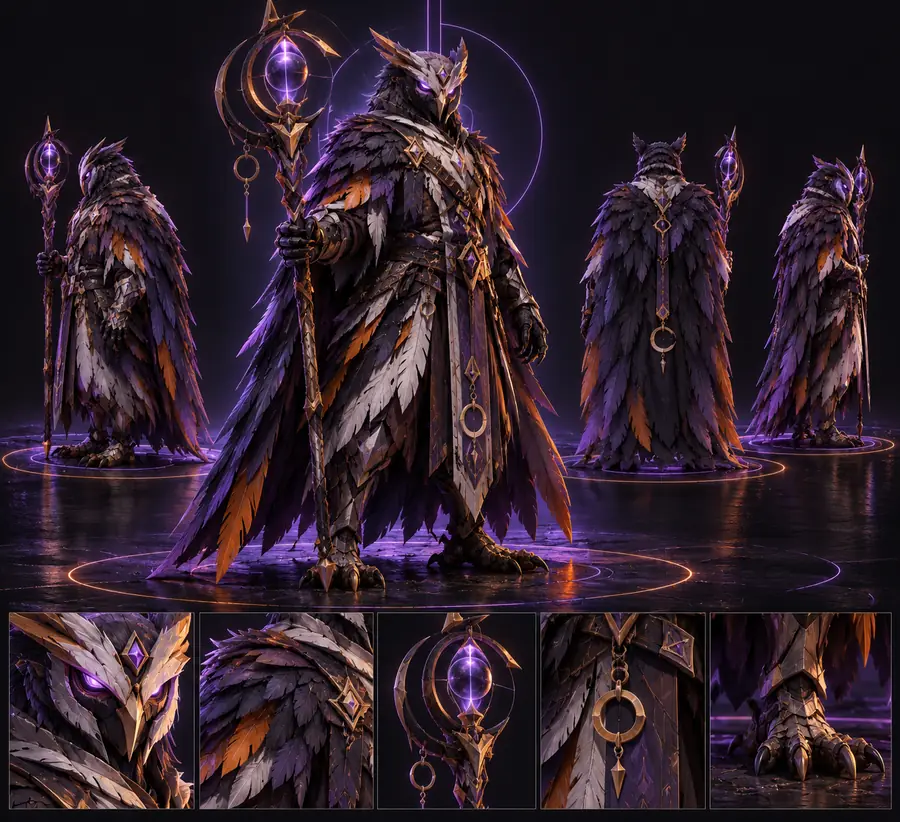
A character sketch needs a rough sense of volume before another drawing pass.
Inspecting a 3D concept from several angles may reveal proportions that looked convincing only from the front.
ai3dgen for 3d modelsImage-led creation
An image can give a 3D tool a starting point, but it cannot show every side of an object. Use this guide to choose a workable reference, understand what the result may need, and check the destination's current access terms.
Image-led 3D creation uses a picture as a reference for a model with depth. The picture supplies visible shapes and colors; unseen surfaces still require interpretation.
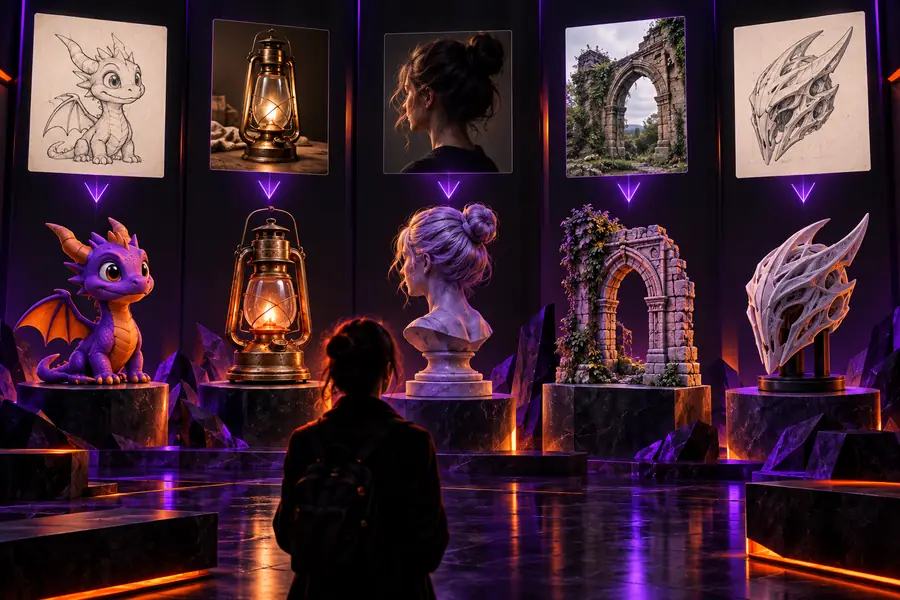 Visual reference
3D concept
Visual reference
3D concept
These illustrations explain the visual shift; they are not a verified conversion pair. A polished render also cannot establish whether its underlying geometry is usable.
The useful outcome depends on what you plan to do with the model, not just how closely one rendered view matches the picture.
A character sketch needs a rough sense of volume before another drawing pass.
Inspecting a 3D concept from several angles may reveal proportions that looked convincing only from the front.
ai3dgen for 3d modelsA photographed object is a reference for an early shape study.
A model can help test the silhouette, while measurements and hidden details still need separate reference material.
ai3dgen onlineA prop illustration suggests an asset worth prototyping.
A draft provides a starting form; inspect topology and texture suitability before treating it as a game asset.
ai 3d model generator freeA drawing of a figurine inspires a printable object.
The shape may guide a prototype, but a printable file needs checks for closed surfaces, wall thickness and scale.
free ai3dgen 3d modelsUse these attributes to judge any proposed image-to-model workflow. They describe what to inspect, not guaranteed features of the linked destination.
Source image
Resulting 3D model
Source image
Shows only the visible outline and surfaces.
Resulting 3D model
Requires an interpreted form on every side.
Source image
Implied by shading, perspective and overlap.
Resulting 3D model
Represented by spatial geometry.
Source image
Not visible in a single view.
Resulting 3D model
Must be inferred, supplied through more views or edited.
Source image
Captured under the image's lighting.
Resulting 3D model
May need separate texture or material review.
Source image
Usually lacks reliable dimensions.
Resulting 3D model
Needs measurement before size-sensitive use.
Source image
Check clarity, subject separation and occlusion.
Resulting 3D model
Rotate the model; inspect surfaces and intended-use requirements.
A sharp, well-lit subject against an uncluttered background is easier to interpret than a small or heavily obscured one. If you lack a useful image, a text-led approach may be a better starting point.
A front view does not show rear features, recessed areas or the true depth of overlapping parts.
WorkaroundGather additional views when possible, then inspect and revise the inferred surfaces.
A convincing render does not prove that a mesh is clean enough for animation, fabrication or a game.
WorkaroundCheck the actual model against the requirements of your intended use.
Search wording does not confirm current upload support, usage limits, export options or commercial rights.
WorkaroundRead the destination's current terms and available controls before uploading or relying on an output.
Choose an image with a readable outline and as little obstruction as possible. At the destination, confirm which inputs it accepts and what access terms apply; then judge any result from more than one angle.
Explore 3D creationAn image can serve as a reference for generating a 3D form, provided the tool you choose supports that input. Because one view hides much of the object, inspect the inferred sides rather than assuming they match the real subject.
No. The search phrase alone does not establish a tool's current access terms or whether it accepts image uploads. Check those details at the destination before preparing a project around them.
Choose a clear subject with a distinct outline, useful lighting and minimal obstruction. Additional views can help clarify features a single picture cannot show.
Not necessarily. A render may look complete while the underlying model still needs checks for geometry, scale or its intended use. Review the actual output before adding it to a production workflow.