How to Find Free Ai3dgen 3D Models Without the Friction

Free ai3dgen 3d models are easiest to approach when you prepare the input first, choose the right starting method, and review the result as a draft rather than a finished asset.

Review the draft before use

Start here

A small amount of preparation makes the first generation easier to judge and easier to revise.

Prepare the input

One full run-through

The same basic sequence works whether you begin with a prompt or a reference image: define the subject, inspect the draft, then decide what needs another pass.

Indie game creator

Describe one readable character with its silhouette, pose, proportions, and a short list of important props.

You get a focused draft that is easier to compare against the original concept than a vague, highly detailed prompt.

ai3dgen for 3d models
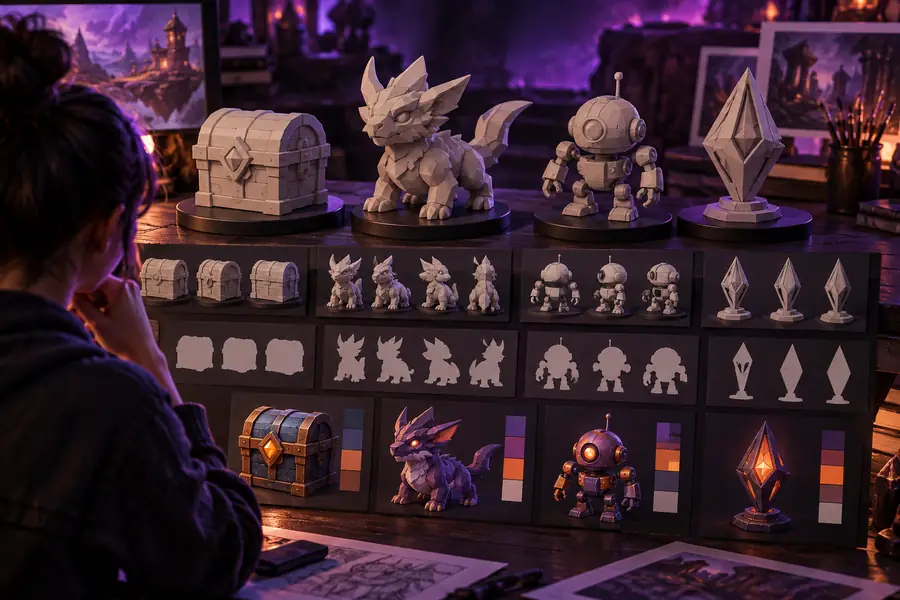
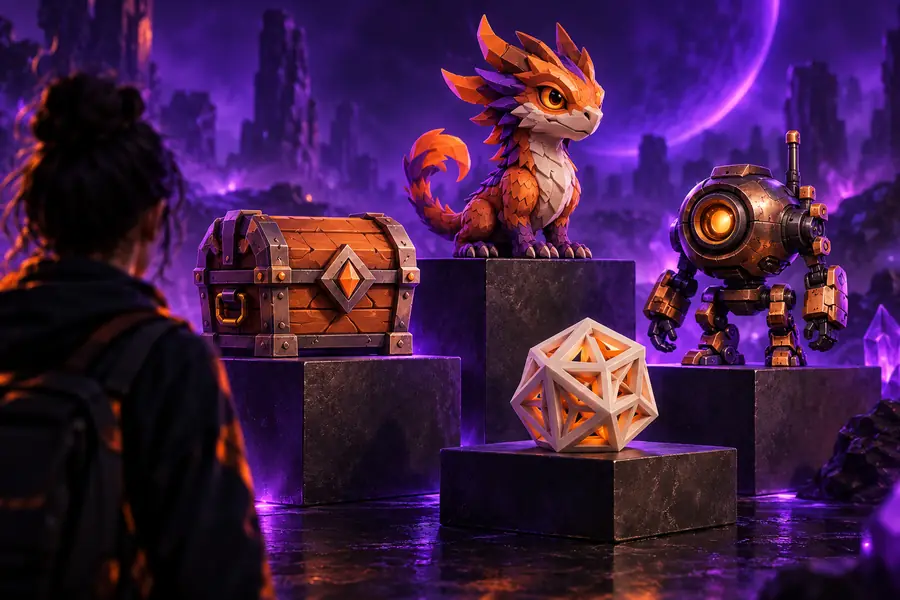
Product visualizer

State the object category, camera-facing features, major materials, and which surfaces must remain visually clear.

The first result gives you a visual blockout for discussion before time is spent refining the design.

image to 3d model free

3D learner

Start with a familiar object and describe only its defining forms, avoiding several unrelated objects in one request.

A simpler draft makes it easier to spot how wording affects shape, scale, and visible details.

ai3dgen online

Concept artist

Use a concise subject description, then compare the generated silhouette with your reference direction.

You can test a visual idea quickly without treating the generated mesh as the final art direction.

ai3dgen alternative free

Three useful passes

Keep each pass narrow. Changing the subject, style, pose, and material all at once makes the result harder to diagnose.

  1. 1

    Define the subject

    Name one main object, its purpose, its pose or viewpoint, and the three details that matter most.

  2. 2

    Generate a draft

    Send the prepared prompt or image-led request, then inspect the overall silhouette before judging small surface features.

  3. 3

    Revise one variable

    Change one issue at a time, such as proportions, pose, or a missing feature, so the next result teaches you something useful.

Draft to review

  • Prepared input
  • Model draft

Treat the first output as a visual draft: the useful comparison is whether the main form survived the request, not whether every detail is production-ready.

Prepared reference input for a 3D generation workflow
Generated 3D model draft shown after processing

Choose your starting point

Options table

There is no single best entry point for every idea. Use the route that gives the generator the clearest information about the form you care about.

1

Starting material

Prompt-first route

A written description of one subject

Image-first route

A reference image that shows the subject

2

Best when

Prompt-first route

The concept is easier to explain than to find visually

Image-first route

Silhouette, pose, or proportions are central

3

Preparation

Prompt-first route

Specify subject, viewpoint, shape, and key details

Image-first route

Choose a clear image with the important form visible

4

Main review

Prompt-first route

Check whether the wording produced the intended form

Image-first route

Check whether the generated shape follows the reference

5

Common risk

Prompt-first route

Vague language can produce an unfocused result

Image-first route

A busy or unclear image can confuse the main subject

6

Useful revision

Prompt-first route

Simplify the description or clarify one missing feature

Image-first route

Use a cleaner reference or crop attention to the subject

Set expectations

What fails

Free ai3dgen 3d models can be useful for exploration, but a first pass has predictable weak points. Plan a review step instead of assuming the draft is production-ready.

  • Fine details may drift

    Small controls, repeated patterns, thin parts, and tiny surface markings may not appear exactly as requested.

    WorkaroundDescribe the primary silhouette first, then refine one important detail in a later pass.

  • Complex scenes compete

    Several characters, objects, or actions in one request can blur the subject and weaken the overall shape.

    WorkaroundGenerate the main object separately and keep the first request visually focused.

  • Topology is not guaranteed

    A visually convincing result may still need inspection before animation, manufacturing, or a technical pipeline.

    WorkaroundUse the draft for ideation and review its geometry in the tool or workflow where it will be used.

  • References can be ambiguous

    A cropped, dark, or cluttered image may hide the proportions you want the model to follow.

    WorkaroundSelect a clear reference with one dominant subject and visible edges.

Turn a clear idea into a 3D draft

Prepare one subject, choose the input that explains it best, and send a focused request to the generator. Use the first result to guide the next decision, not to replace review.

Open 3D generator
  • Start with one subject
  • Revise one variable at a time
  • Review the draft before reuse

Common questions

FAQ

The practical starting point is the generator workflow itself, using a focused prompt or a clear reference image. Treat the resulting model as a draft and check whether its form fits your intended use before relying on it.

Yes, a written description can provide the starting information for a model request. The clearest prompts usually name one subject, its main shape, viewpoint or pose, and only the details that matter most.

Neither is always better. Use a prompt when the idea is easier to explain, and use an image when silhouette, proportions, or a visible reference are more important than verbal detail.

A generated result should be reviewed before it enters a technical workflow. Check geometry, proportions, thin parts, and any requirements specific to animation, rendering, fabrication, or export.

Start creating
Start creating